


Machine translation for strings
Polylang Pro
Polylang Business Pack
Technical requirements
The following example shows how to machine translate WooCommerce strings. Make sure you have the following:
- Polylang Pro 3.9 (or later) activated and configured.
- WooCommerce, installed and activated, if you want to translate WooCommerce strings.
- Polylang for WooCommerce, if you want to machine translate WooCommerce strings available in the Translations panel. You need a valid Polylang Business Pack license to download the add-on from your Polylang account.
- A DeepL API key if you plan to use machine translation.
Machine translation panel
Go to Languages > Translations.
At the bottom of the page, you will find the Machine translation panel.
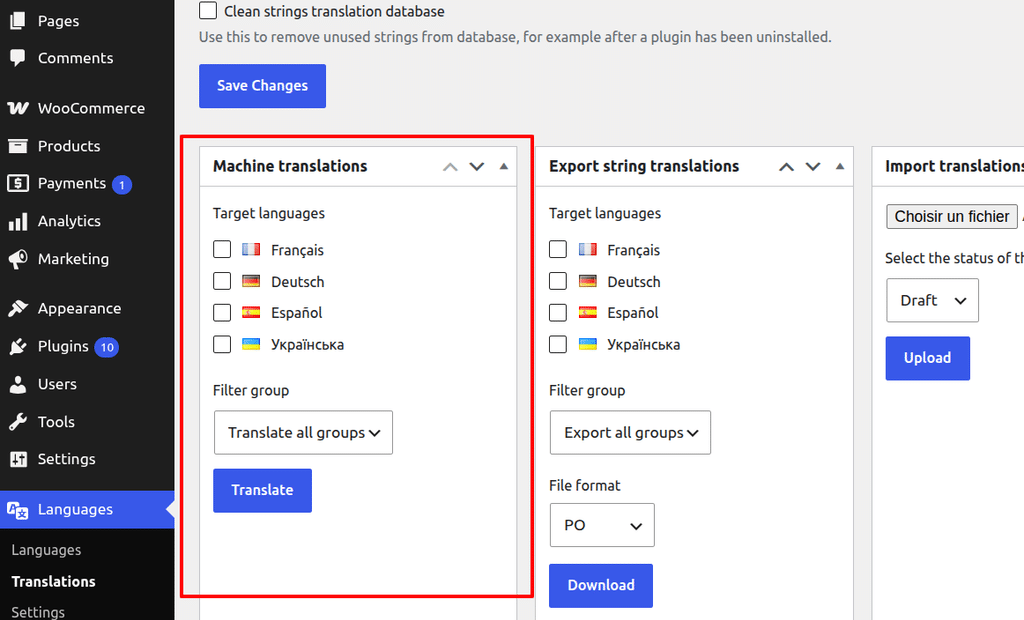
Select languages and strings to translate
- Under Target languages, select the languages into which you want to translate the strings.
- Under Filter group, choose which strings to translate:
- Translate all groups (default): translates strings from all available groups.
- WordPress: translates strings registered by WordPress.
- WooCommerce: translates strings registered by WooCommerce, if the WooCommerce plugin is installed and active.
- URL slugs: translates translatable URL slugs (Polylang Pro).
- Other groups may also be available, depending on your active theme and plugins. Themes and plugins can register their own strings for translation in the Strings translations table.
- Click Translate to start the machine translation.
Polylang sends the selected strings to DeepL and fills in the corresponding translation fields.
You can review and edit the translations in the translation table before clicking Save Changes.
Example
Let’s take a WooCommerce website with English as its default language.
- Select all your target languages under Target languages.
- Select WooCommerce under Filter group.
- Click Translate.
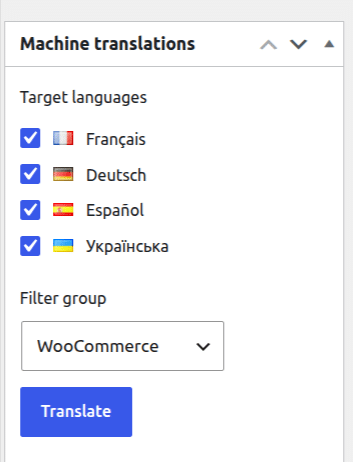
- Once the translation is complete, go back to the translation table at the top of the page. Select the WooCommerce group to view the translated strings.
The strings have now been automatically translated into the selected languages using DeepL.
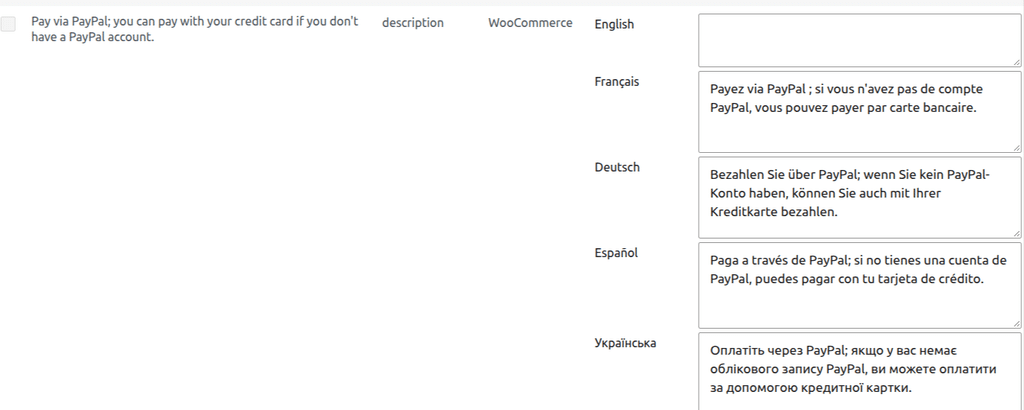
Since English is the default language of this website, the original strings are already in English. The English translation fields are therefore left empty. Only the translations into the other languages are filled in.
Here are two examples:
| Original string (English) | Français | Deutsch | Español | Українська |
|---|---|---|---|---|
| Pay via PayPal; you can pay with your credit card if you don’t have a PayPal account. | Payez via PayPal ; si vous n’avez pas de compte PayPal, vous pouvez payer par carte bancaire. | Bezahlen Sie über PayPal; wenn Sie kein PayPal-Konto haben, können Sie auch mit Ihrer Kreditkarte bezahlen. | Paga a través de PayPal; si no tienes una cuenta de PayPal, puedes pagar con tu tarjeta de crédito. | Оплатіть через PayPal; якщо у вас немає облікового запису PayPal, ви можете оплатити за допомогою кредитної картки. |
| Congratulations on the sale! | Félicitations pour cette vente ! | Herzlichen Glückwunsch zum Verkauf! | ¡Enhorabuena por la venta! | Вітаємо з успішним продажем! |