


How to use DeepL machine translation with Polylang Pro
Polylang Pro
🎯 Objective: Learn how to translate your content using DeepL machine translation integrated with Polylang Pro.
What is DeepL machine translation?
DeepL machine translation is integrated directly into Polylang Pro; all you need is a DeepL API key. You do not need to leave WordPress to generate translations. Once a translation is generated, you can manually review and edit it to ensure quality and accuracy.
Known limitations
Before enabling DeepL with Polylang Pro, please review the following limitations.
DeepL integration is not compatible with certain page builders
⚠️ The integration does not support content generated by certain page builders, including Elementor and Divi. This limitation is due to how these builders store content in the WordPress database.
DeepL is also not compatible with the WordPress Site Editor (Full Site Editing). However, it works smoothly with content created in the Classic Editor and the Block Editor.
Machine translation is not bulk translation
⚠️ DeepL does not translate the entire website in one click.
Each item must be translated separately. DeepL works on individual content items only, and you will need to click on each individual item to use the machine translation, such as:
- Posts
- Pages
- WooCommerce products
- Custom post types (CPTs)
Supported languages and API key limitations
- A free DeepL API key lets you translate up to 500,000 characters a month.
- You will need a DeepL Pro API key if:
- You need to translate more characters using machine translation.
- Some languages, such as Hebrew, Latin American Spanish, Thai, Vietnamese, and others, require a Pro API key. Please refer to the official DeepL documentation for the full list of supported languages and API plans.
Technical requirements
To use DeepL with Polylang Pro, you need:
- Polylang Pro version 3.6 or later
- A valid DeepL API key (Free or Pro, depending on your needs)
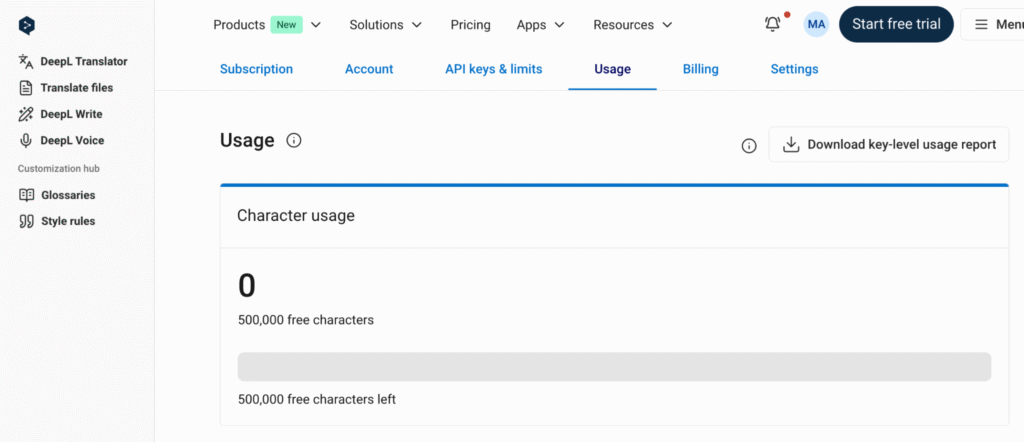
- Available DeepL translation quota (you can check your quota from the Usage DeepL tab or directly from Polylang’s Machine translation panel).
Translating content with DeepL
Enabling DeepL machine translation
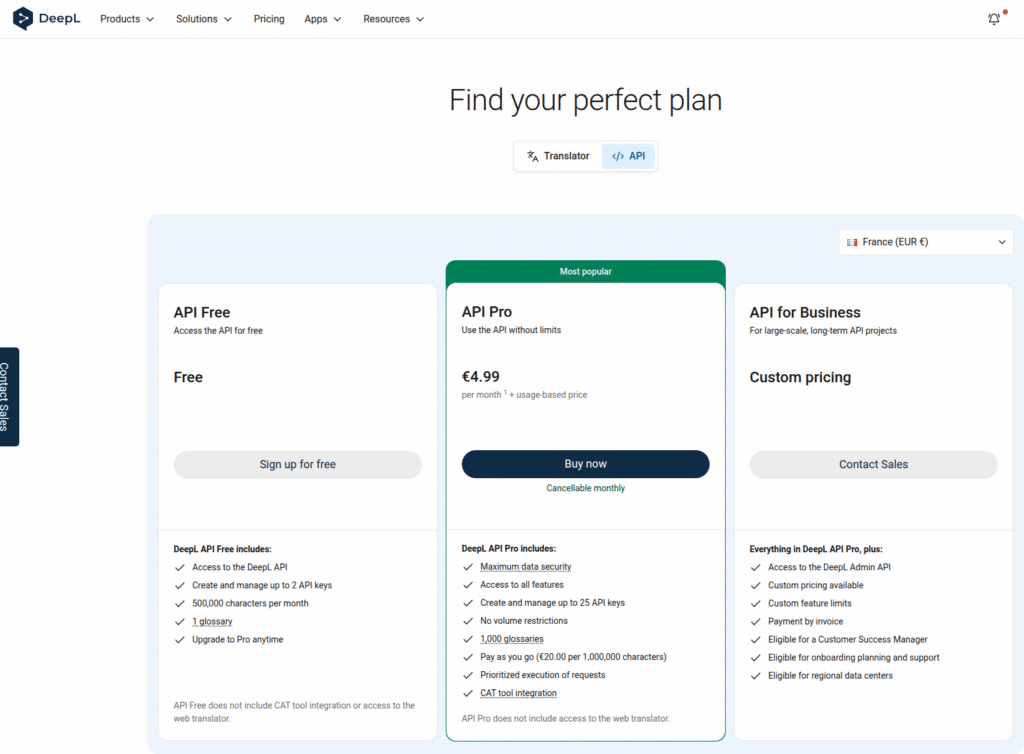
- Go to the Deepl API section and choose your plan (Free, Pro, or Business) to generate an API key.
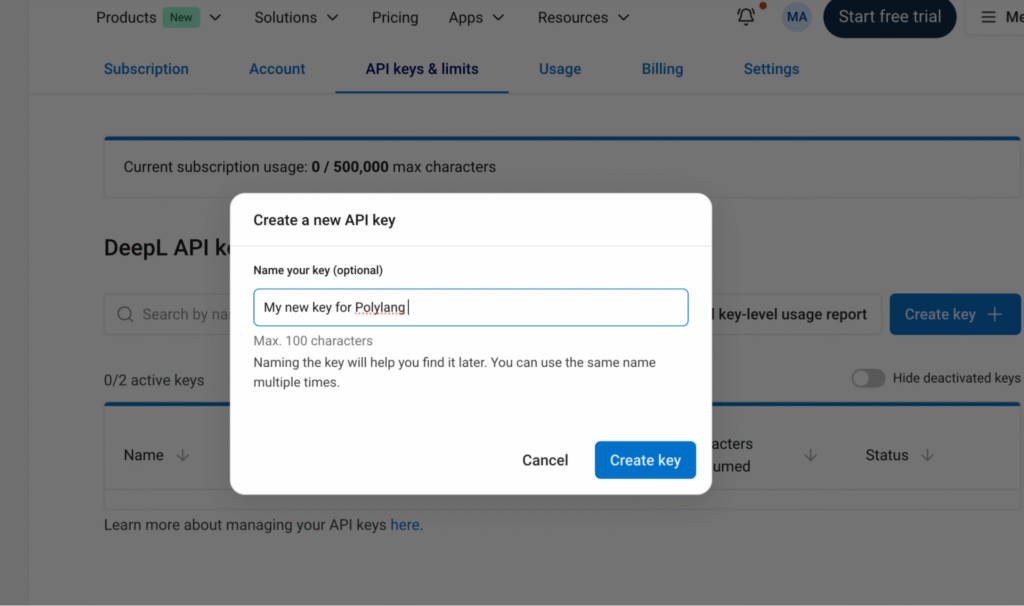
2. Create a key from the API Keys & Limits tab and rename it to find it easily.
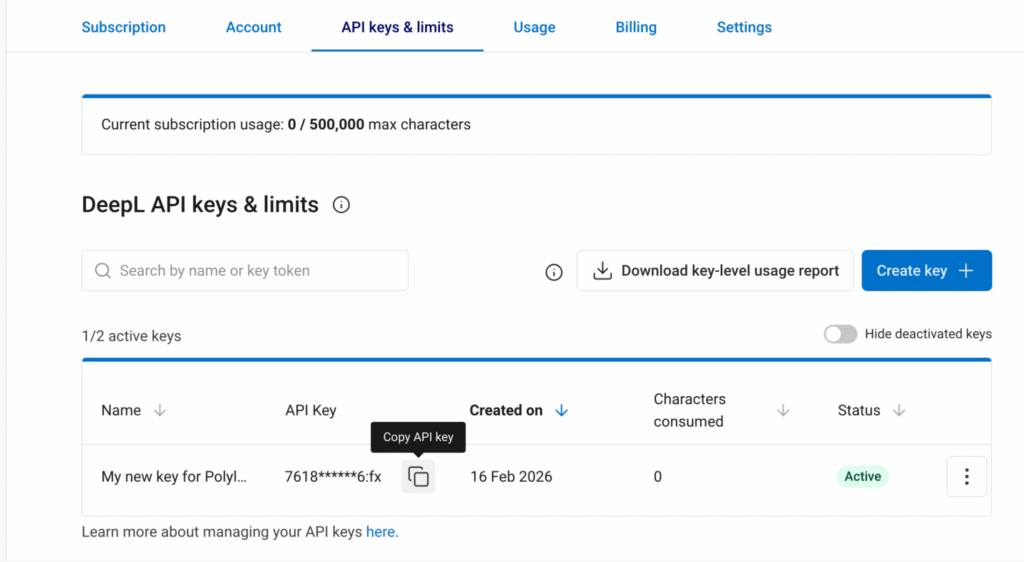
3. Copy the API key.
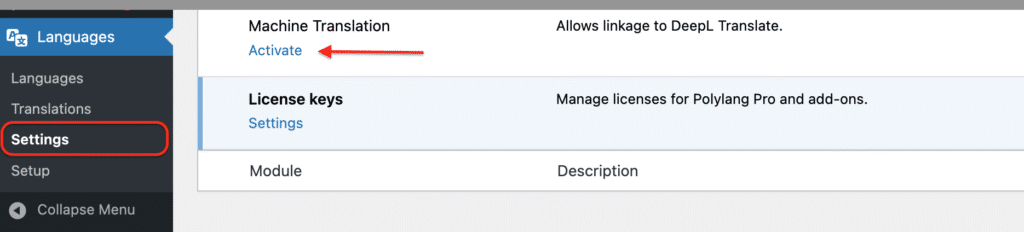
4. Go to Languages > Settings > Machine Translation and click on Activate.
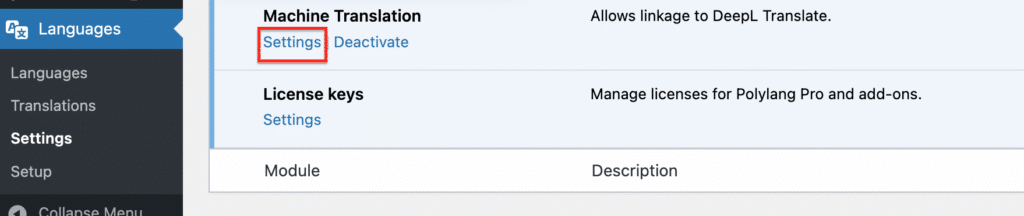
5. To link your DeepL account to Polylang Pro, click on Settings
6. From the settings panel, you can:
- Check the data you have used and your available quota left:

- Add your API key, then click Check connection to DeepL to verify the connection.
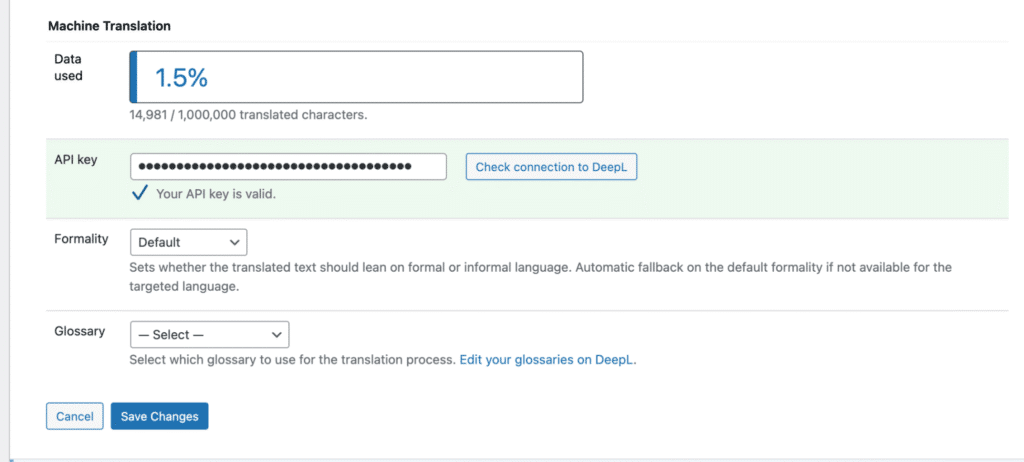
- Define the level of formality (formal or informal).

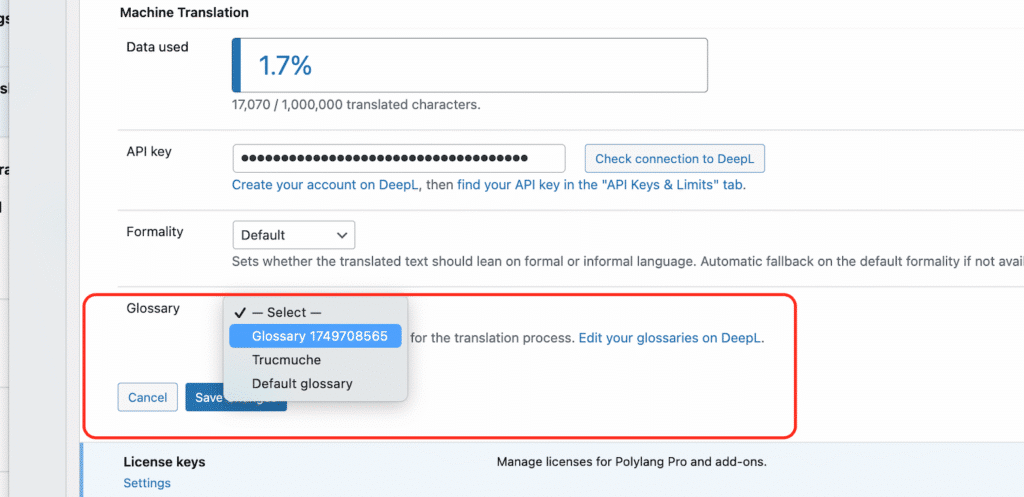
- Select a DeepL glossary from the dropdown menu if needed. It will tell the machine translation which terms require specific terminology (Coming soon: Available from Polylang 3.8).

7. Click the Save Changes button.
Translating posts, pages, and WooCommerce products
- Open the post, page, or product that needs translation, then click the DeepL icon in the language metabox to activate DeepL machine translation.
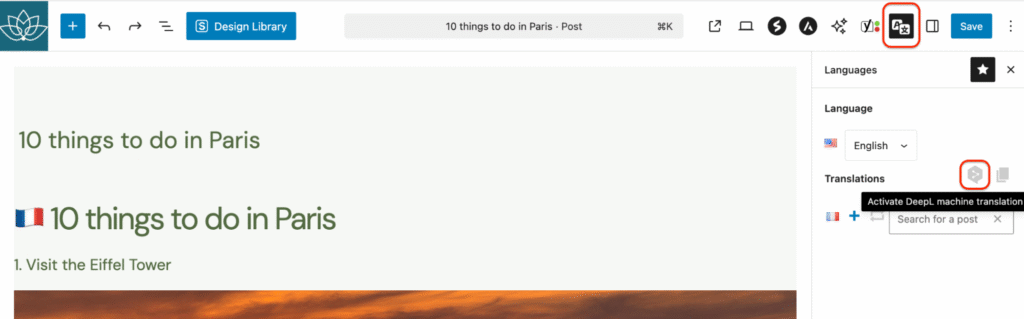
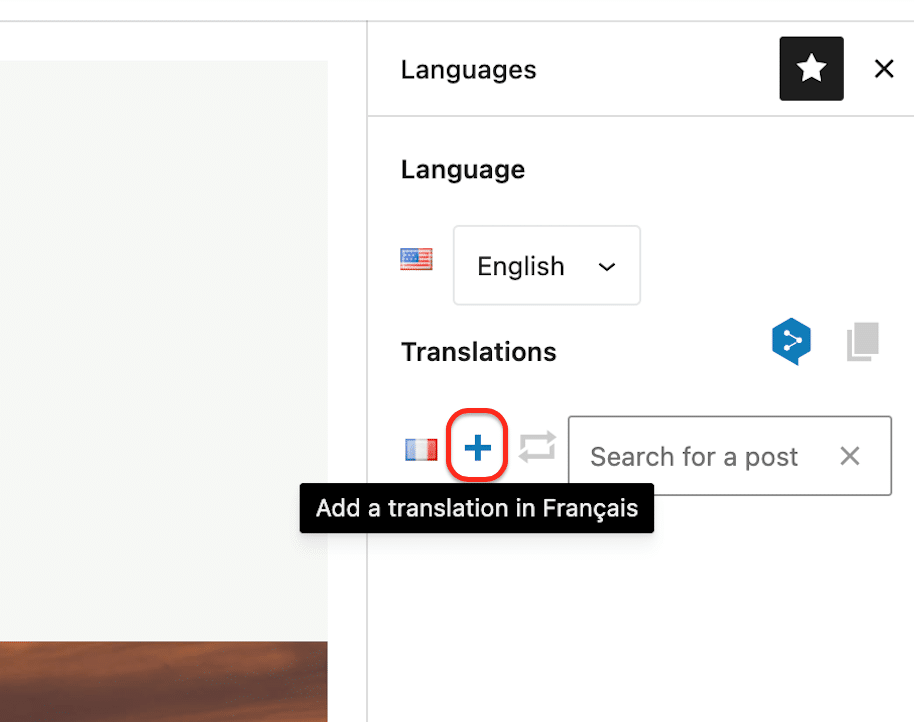
- Click the + icon to use machine translation and have your post automatically translated into French.
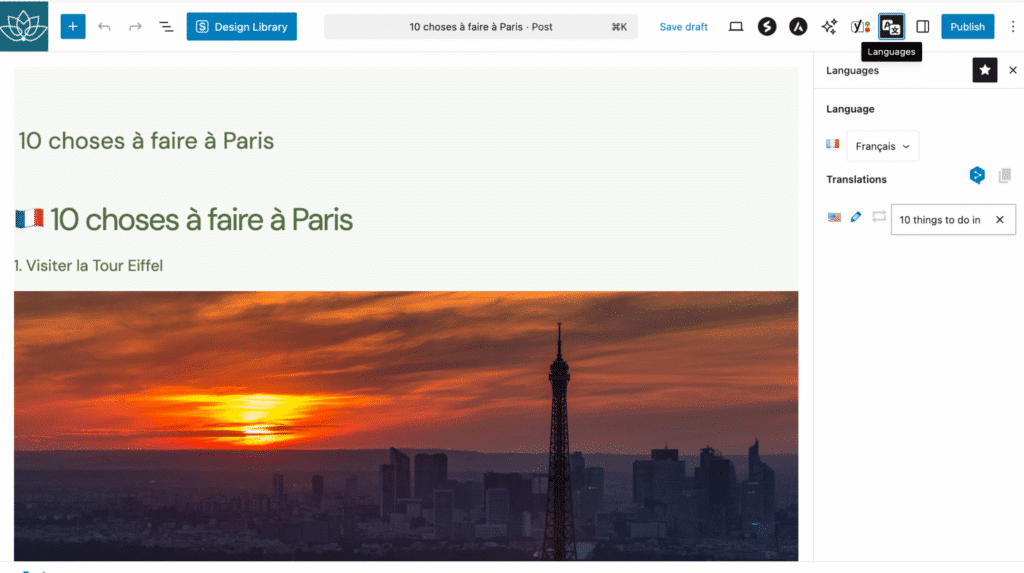
- Your post is now translated into French and created as a draft. If you are satisfied with the translation, you can publish it using the Publish button.
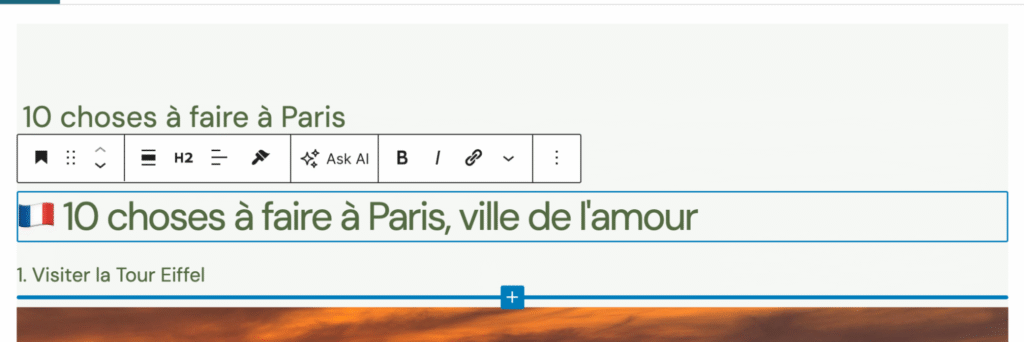
- You can manually edit the content to fine-tune the translation.
Updating content and its translation with DeepL
There is no automatic synchronisation between the original content and its translation. If you modify the original content after generating the translation, the translated version will not update automatically.
Example:
- You have an English post called “10 things to do in Paris.”
- You can generate the French translation with DeepL; the French post is created automatically. Later, you add this content to the post: “Update 16/2/2025: the museum is closed from January 2026 to March 2026”.
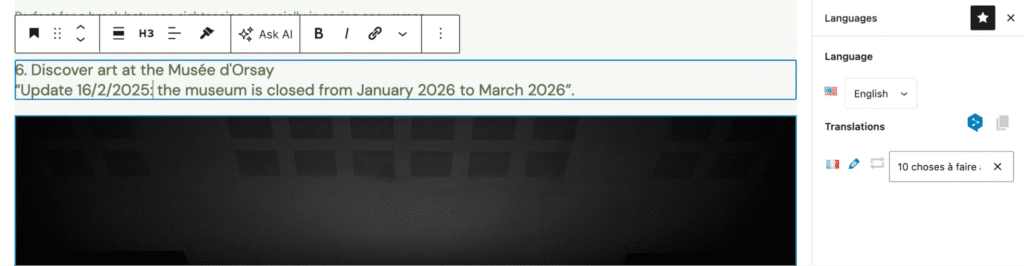
The French version will not be updated automatically, and DeepL will not translate the new paragraph.
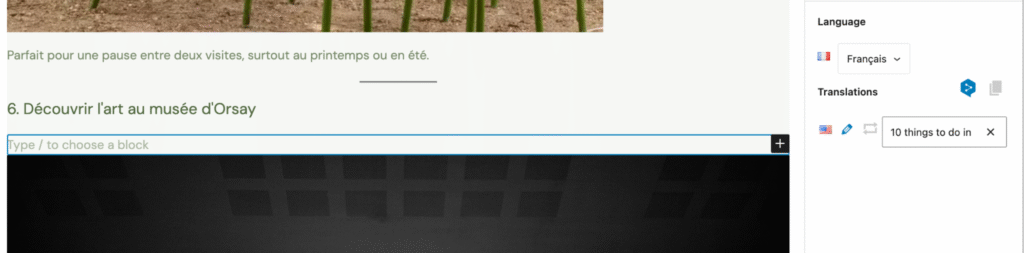
To update the French version, you must either:
- Manually edit the French post and add the translation yourself.
- Delete the translated post and regenerate the DeepL translation for the entire post.
| ⚠️ Important: Before regenerating a translation, consider manually updating only the modified sections to avoid consuming additional DeepL credits. |
Translating strings with DeepL (Polylang 3.7 and later)
⚠️ Only strings without existing translations are sent to DeepL. If you have already translated some strings, they will not be overwritten; your translation will stay intact.
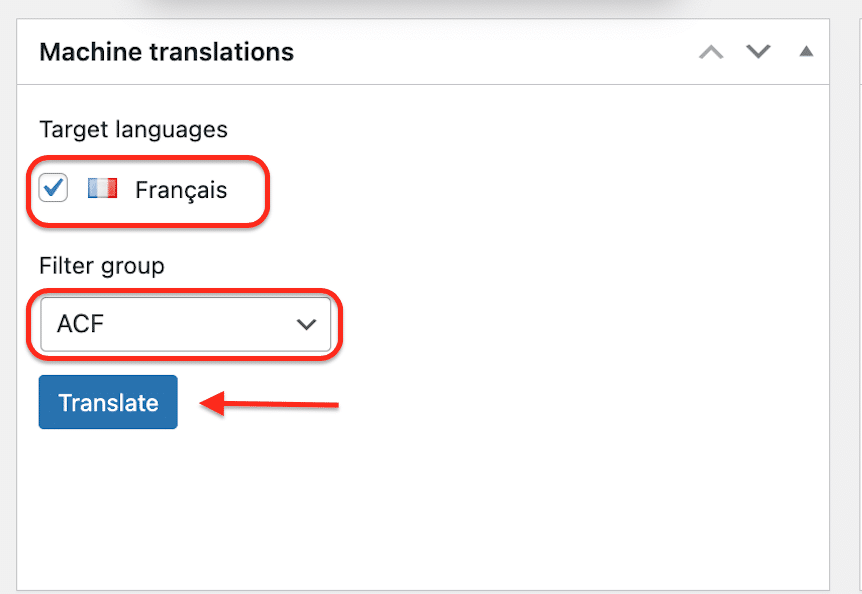
- Go to Languages > Translations > Machine Translations and select the Target language and filter by the group you want to translate.
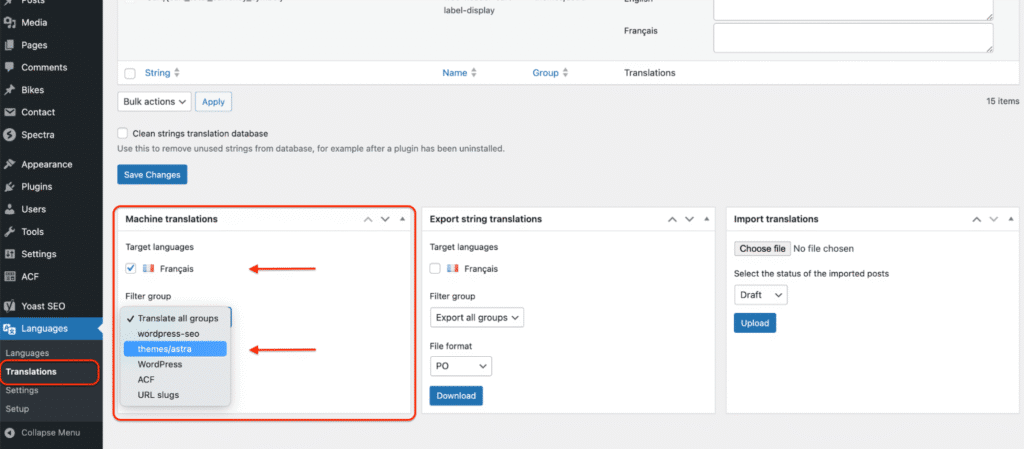
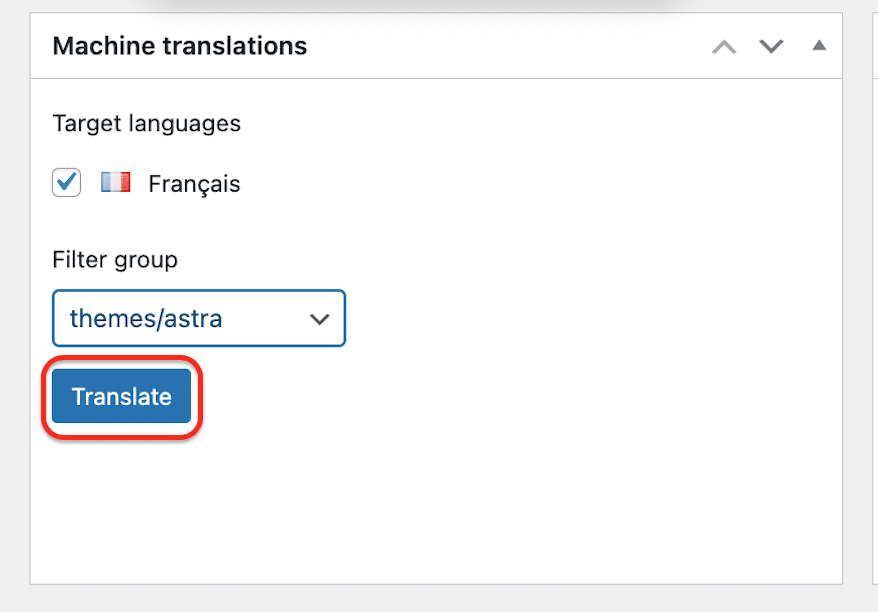
- Press the Translate button.
- All content from the Astra theme has been automatically translated with DeepL.
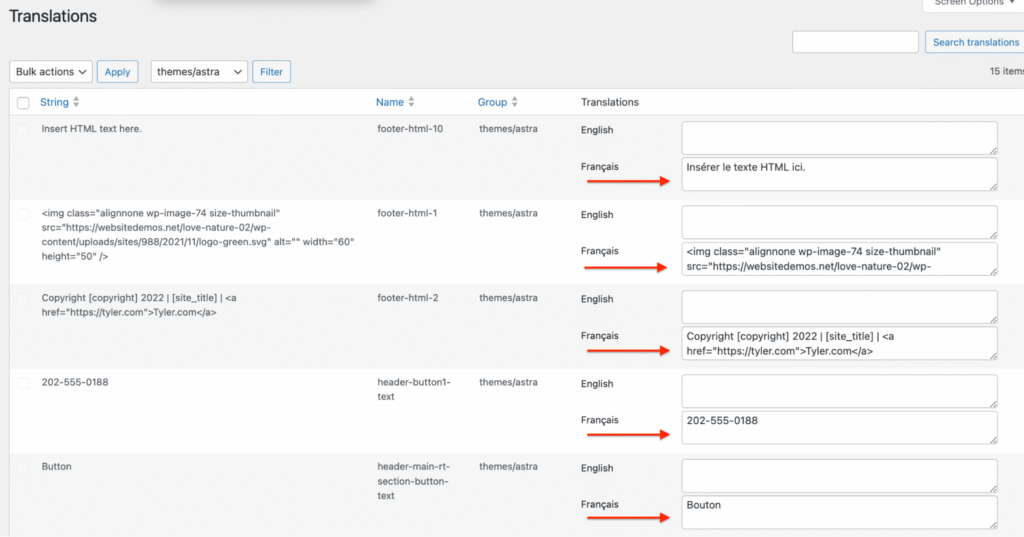
| ⚠️ Hint: Hardcoded strings do not appear in the Translations table. Tools such as Loco Translate are required to translate those strings. |
Translating taxonomies with DeepL machine translation
If a post has a category attached, DeepL will translate it along with the rest of your content. This includes:
- Automatic linking between taxonomy translations.
- Creation of new translated terms when needed.
My English post is in the Romantic category; the French translation does not exist yet.

When using DeepL to translate my post, the category is synchronized and translated:

| ⚠️ Note: DeepL cannot translate a category independently. The category must be attached to a post or page, and it will be translated along with that content. |
Translating custom fields and metadata with DeepL machine translation
Required configuration for ACF Pro
Custom fields from ACF Pro must be properly configured and set to translate in the Translation field.
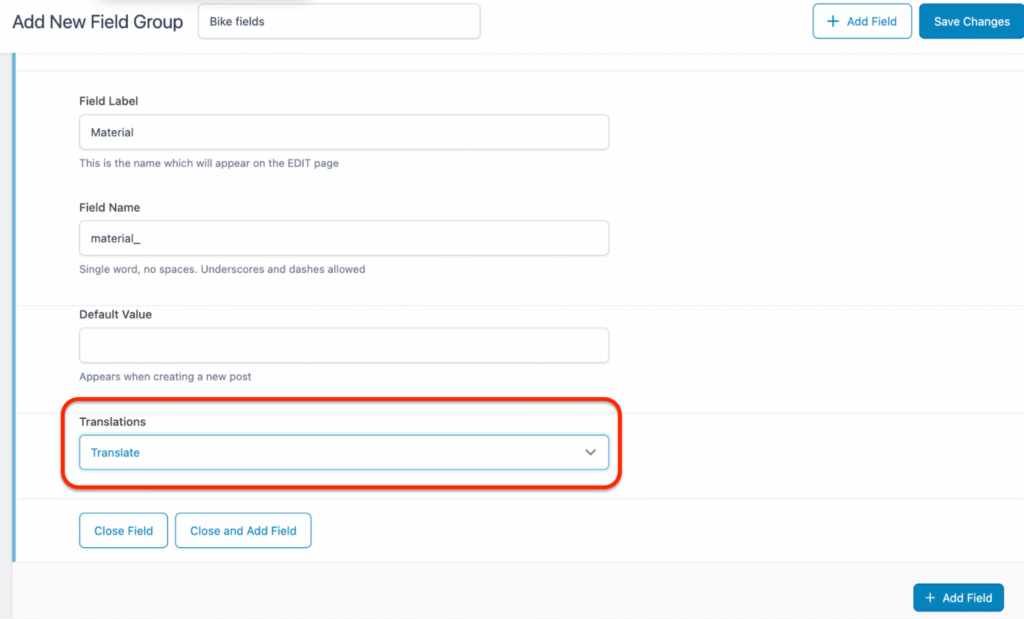
How ACF Pro custom fields are handled with DeepL
With DeepL, you can, for example, translate labels, titles, and post types.
- Go to Languages > Translations.
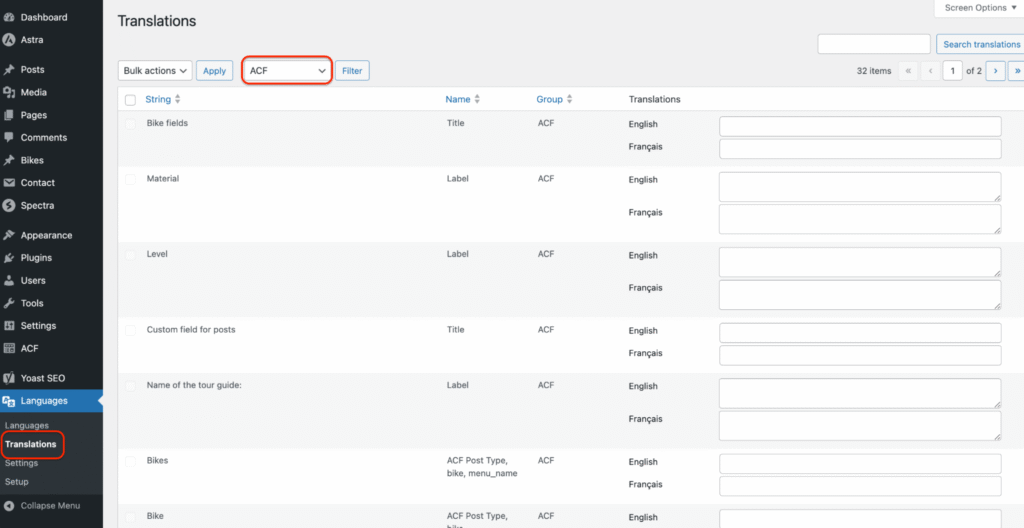
- Scroll down to the Machine Translations section, select the target language, and make sure you are filtering the ACF Pro. Hit Translate.
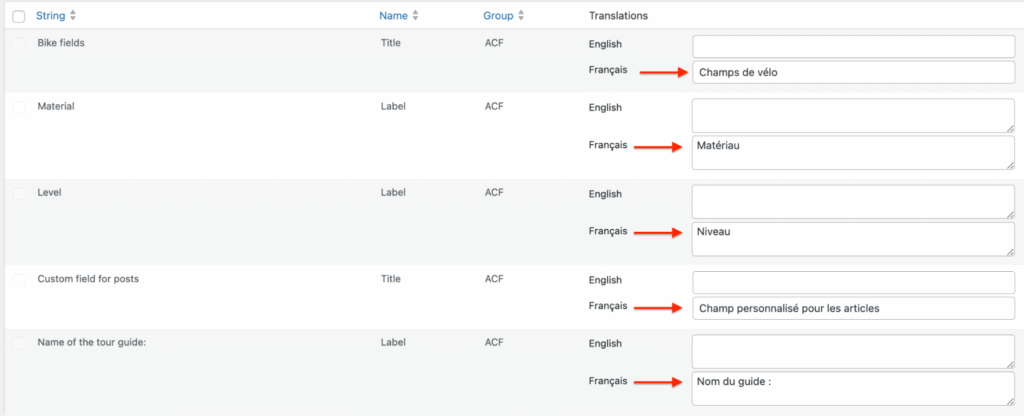
- All the ACF Pro content is now translated into French. You can edit the translations manually if needed.
Using DeepL glossaries (Polylang 3.8 and later)
A glossary in DeepL is a list of predefined translations for certain words. It allows you to control how specific content or expressions are translated by the machine translation. A glossary ensures that specific terms are always translated the way you define them. This is especially important for slogans, brand names, marketing tone, and technical terminology.
Good to know:
- Glossaries are created and managed in the DeepL dashboard, not in Polylang Pro.
- You need Polylang Pro 3.8 (coming soon) to choose the glossary you want to use for a specific site.
- A single glossary can cover the entire site, as it may contain multiple language pairs.
- A default glossary is usually created automatically by DeepL; all you need is to modify it.
1. Go to your DeepL account and from the Glossaries tab, create some new terminologies:
Time flies → Ça passe vite (not le temps vole)
New Balance → New Balance (not nouvelle balance)
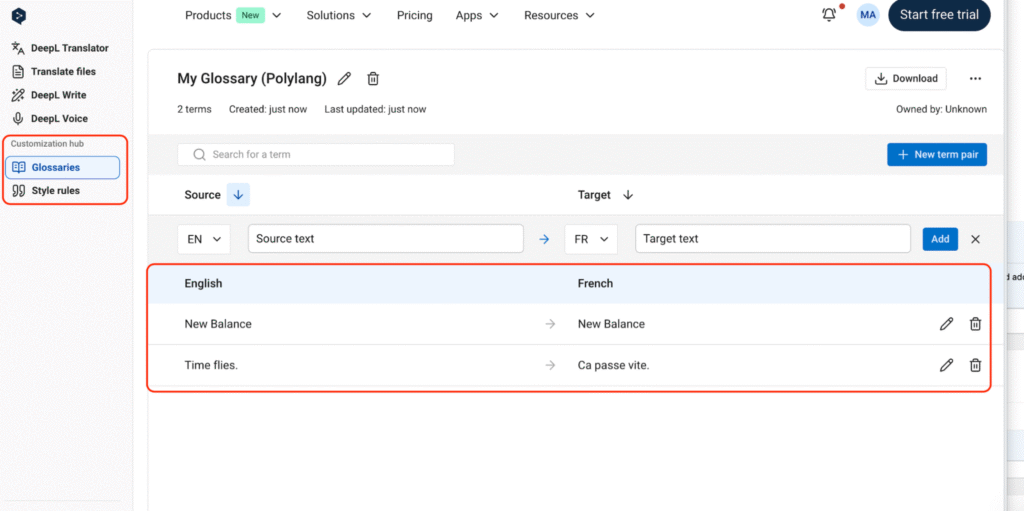
2. From your WordPress dashboard, go to Languages > Settings > Machine Translation > Select your glossary from the drop-down menu and click Save Changes. DeepL will use this specific glossary when translating your content.
Machine translation best practices
- Always review machine translations before publishing.
- Monitor API usage to avoid exceeding your quota.
- Use glossaries to maintain terminology consistency.
- Plan manual updates when modifying original content.
Common questions
Why does DeepL not work with Elementor?
Because Elementor stores content in a format that the integration does not support.
Can I translate my entire site at once?
No. Machine translation works on individual items only.
Why are some languages not available with my API key?
Some languages require a DeepL Pro API plan. Check the official documentation to discover all the supported languages.
Can I edit the translation after DeepL generates it?
Yes. All machine-generated translations can be manually edited.
Can I translate Site Editor template parts?
Not yet.
Does DeepL automatically update translations when I edit the original content?
No. Once created, translations are not synchronised. You must manually update the translation or regenerate it entirely. If you regenerate it, you need to delete the whole translated post and restart the translation process. Be cautious when you do this, because regenerating a translation will use some of your DeepL credits again.
Are internal links automatically updated?
No. Machine translation does not modify internal links. Links must be manually adjusted to point to the translated content.