


How to manage language capabilities in Polylang Pro
Polylang Pro
🎯 Objective: Learn how to assign capabilities to specific user roles in order to control access and responsibilities in a multilingual site.
What you need
- Polylang Pro (minimum version 3.8)
- The User Role Editor plugin (available from the WordPress repository)
What are the language capabilities in Polylang Pro?
A role defines what a user can do, and capabilities are the permissions assigned to that specific role. You can combine several capabilities within a single role to build a workflow that fits your multilingual team structure.
Important: We recommend using the role “Editor” when creating new capabilities.
| Capability | What it does | What it controls |
| translate_{language_slug} | Restricts a role to one specific language | Editing rights for pages, posts, taxonomies, synchronisation tools, and bulk translation for that language only |
| manage_translations | Grants access to the String Translations table | Editing and importing translation strings (Languages > Translations), limited to authorised languages |
| machine_translations | Allows a role to trigger DeepL automatic translation | Access to automatic translation features (requires PLL_ENABLE_MACHINE_TRANSLATION_CAPABILITIES set to true) |
| manage_languages | Grants access to language management tools | Access to the languages table and the Languages REST API (add, edit, delete languages) |
Where can language capabilities be applied?
Once assigned to a role, language capabilities can be applied to the following content:
- Pages
- Posts
- Categories and other taxonomies
- String translations (Translations panel)
Note: Capabilities cannot be assigned inside the Site Editor (patterns, navigation, templates, etc.).
Restricting users to a specific language only
Capability name: language_{language_slug} (e.g for Italian: language_it)
What it does: It gives permission to edit contents that are in this language, or translate contents from other languages into this language. If a user does not have permission for a specific language, they will not be able to edit it in any of these areas.
Good to know:
In this documentation, we are creating capabilities for Gianni, an Italian translator who needs access only to Italian content. You do not need to create a new role to create and assign capabilities; you can assign them to an existing one if you prefer.
- Make sure you have installed and activated the free User Role Editor plugin.
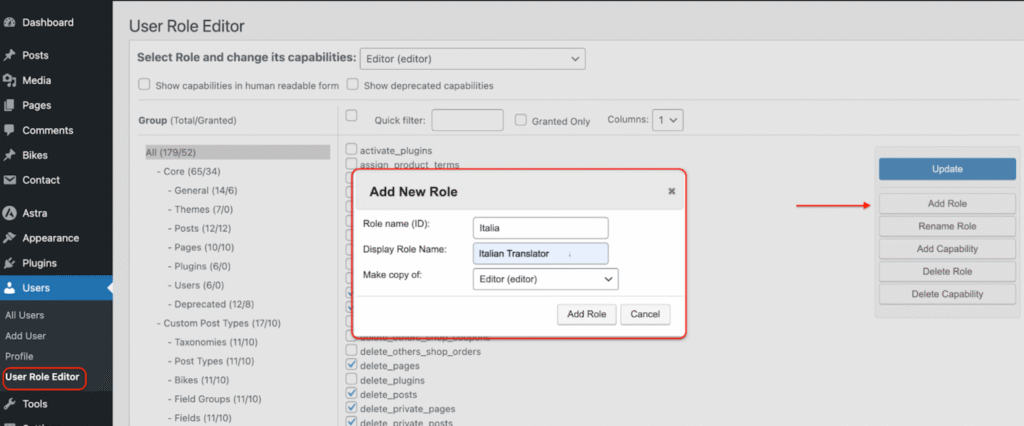
- Go to Users > User Roles Editor > Add Role. Give your role a name, such as “Italian Translator”.
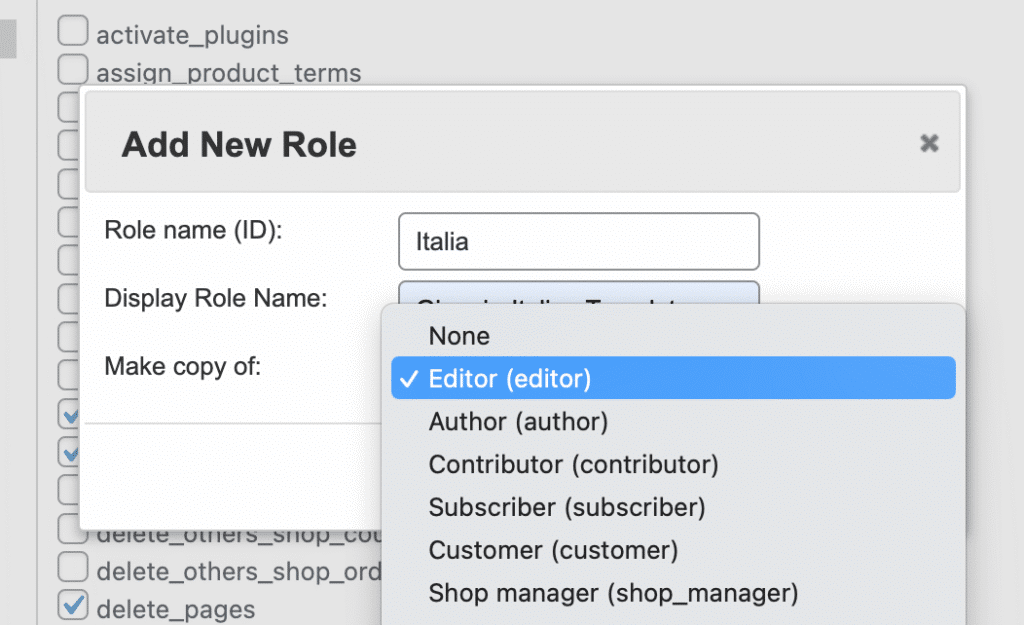
- Make sure you select Editor in the “Make copy of” dropdown menu so the translator can have the same rights as an Editor.
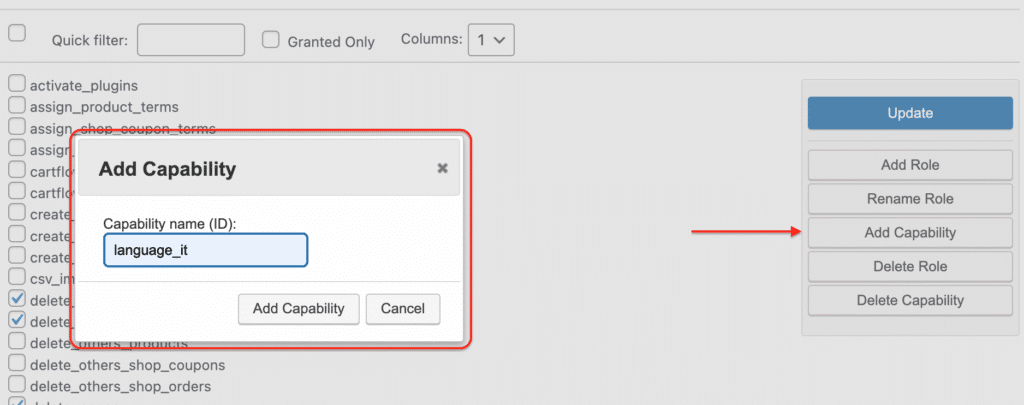
- Click on Add capability and add the language capability name of your choice using the following structure: Translate_language_slug.
In our case, to give access only to the Italian language, the capability looks like this: language_it.
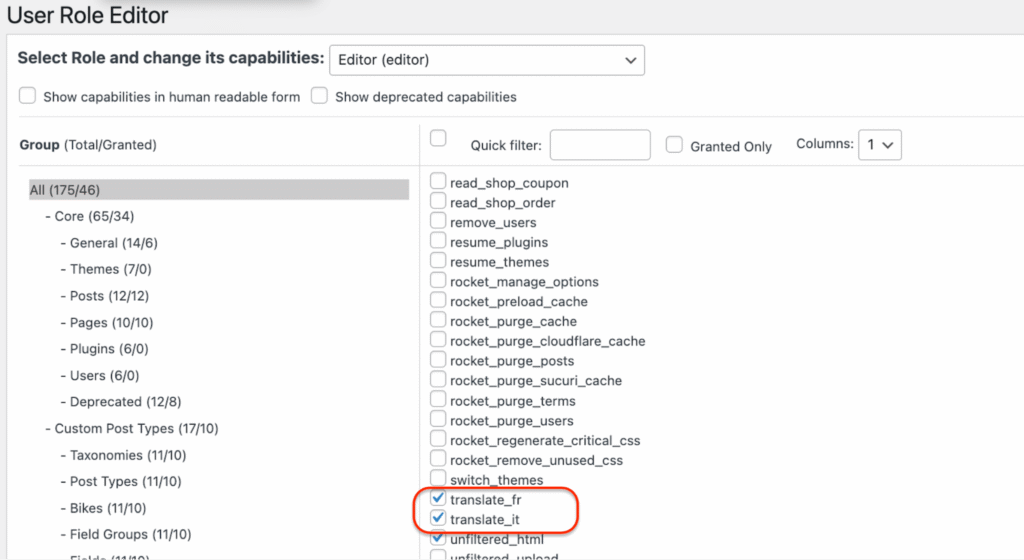
- If you want to allow the user to access only Italian content, put: translate_it
- If you want to allow the user to access only French content, put: translate_fr
- Select the right role from the drop-down menu and choose the language capability to assign to this role. In our case, the translator will have access only to the Italian content with the translate_it capability.
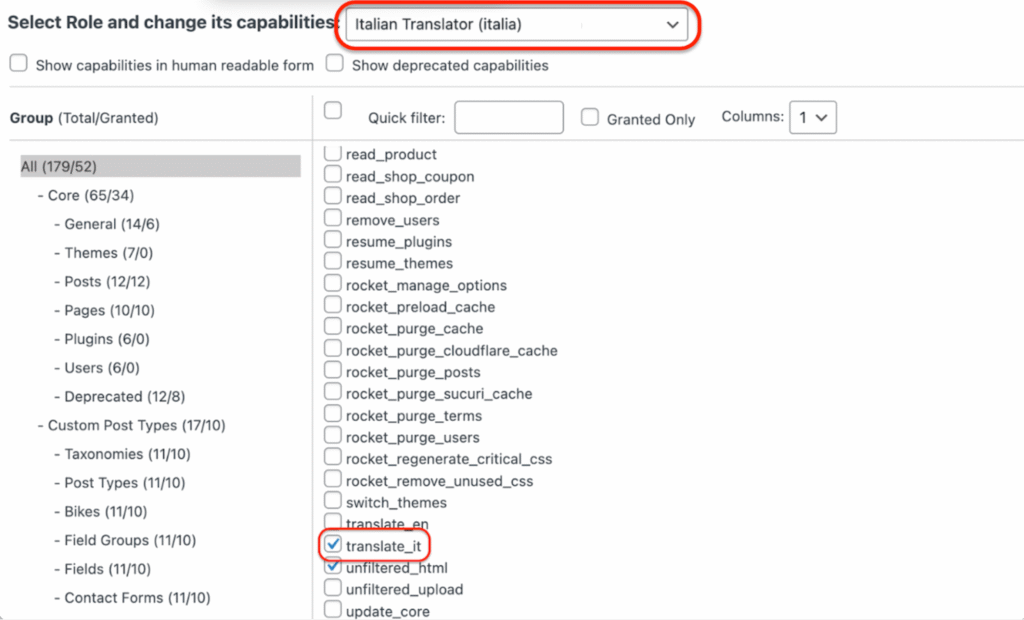
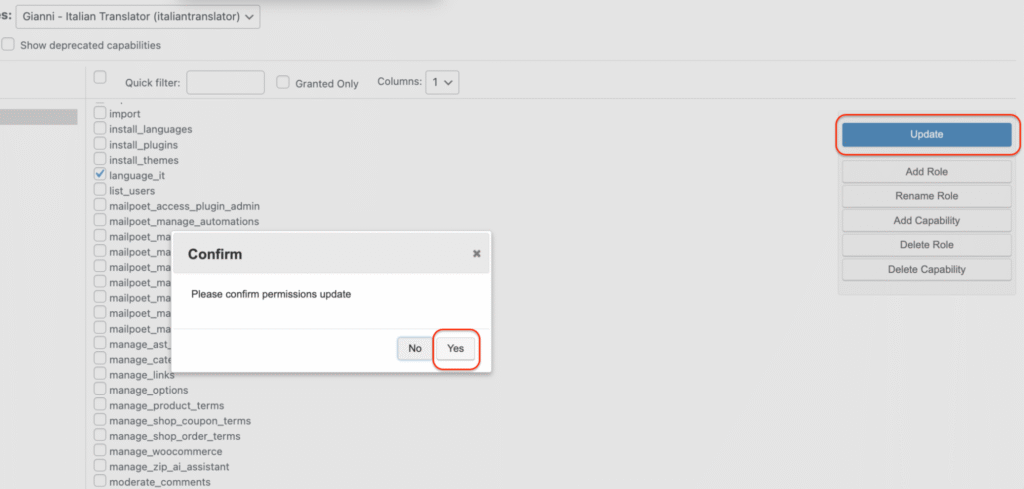
- Click Update, then press Yes to confirm your action.
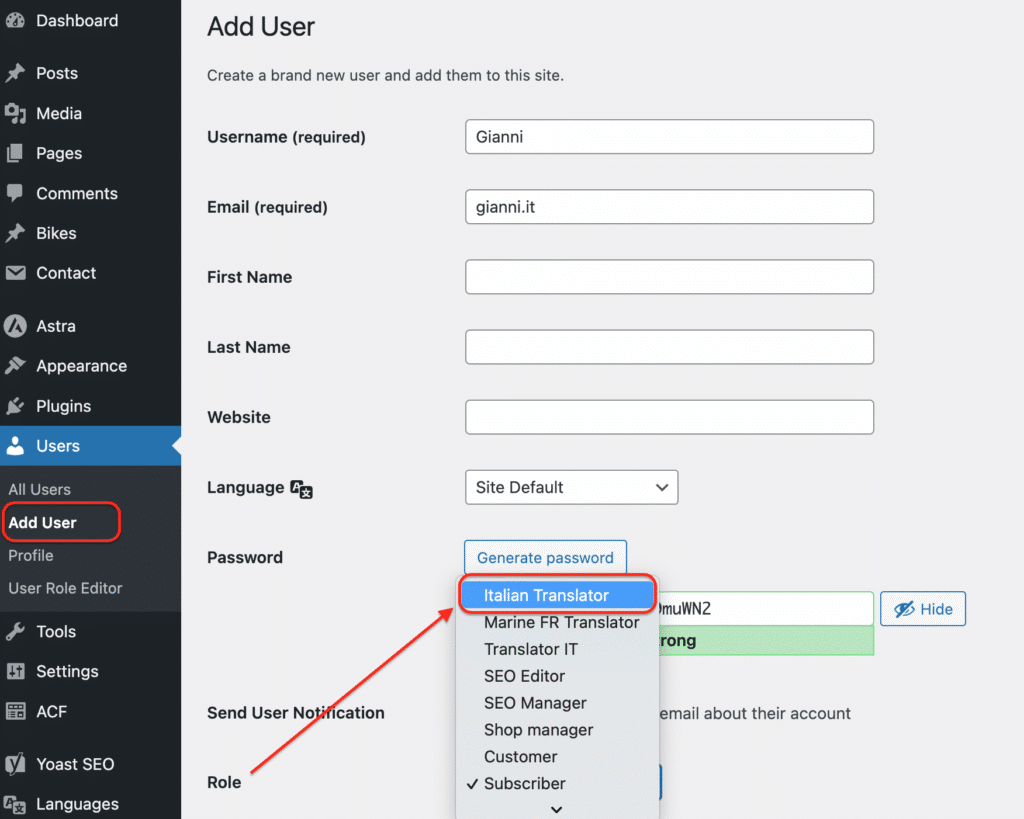
- From Users, assign the “Italian translator” role to the user of your choice.
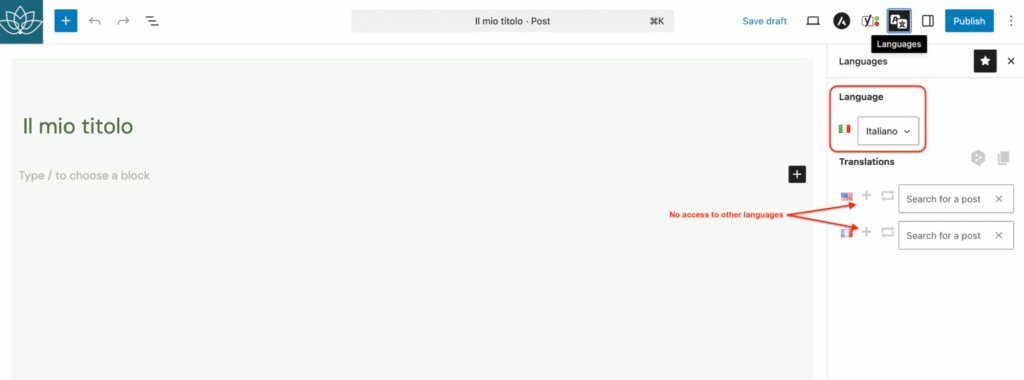
- When Gianni logs in to this site:
- Only Italian content can be created or edited.
- Edit icons (pencils or + buttons) and synchronisation options will be available in Italian, but disabled (in grey) for all other languages.
Good to know: You can give permission to several languages if you want to. Simply check the boxes for your chosen capabilities in the capabilities list.
Giving access to string translations
Capability name: manage_translations
What it does: This capability allows you to grant access to the string translations table (Languages > Translations) without giving full administrator rights. Users can edit translation strings only for the languages they are authorised to manage. The same rule applies when importing content.
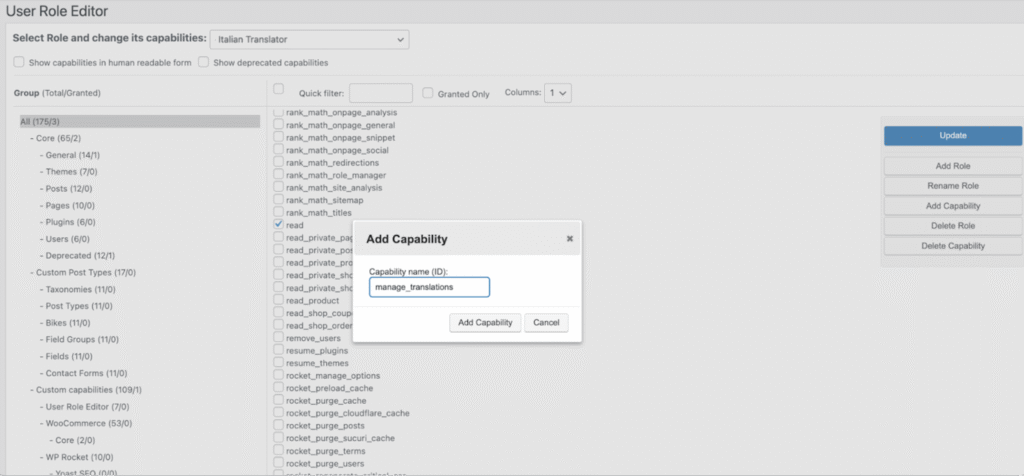
- Go to Users > User Roles Editor > Add capability and name it “manage_translations”.
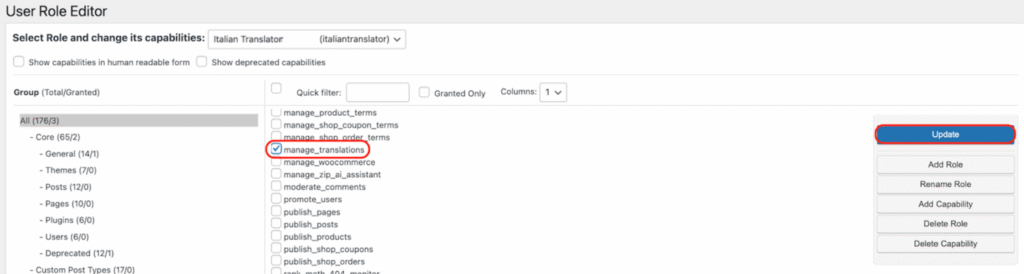
- Check the manage_translations box and click on Update.
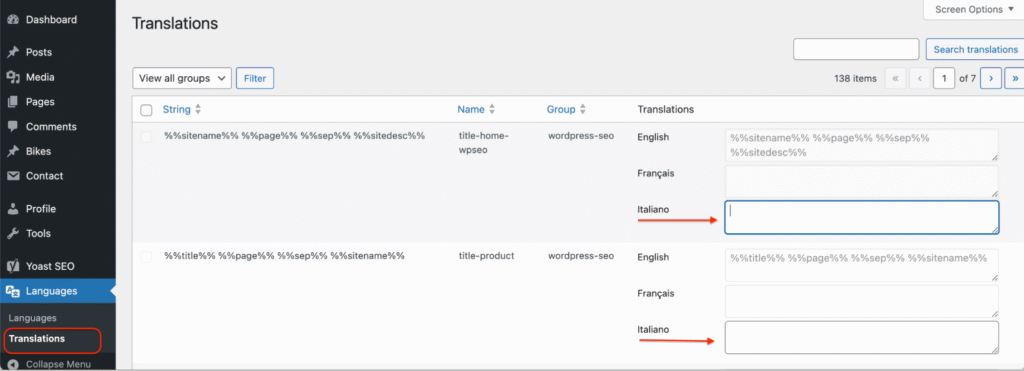
- In our example, Gianni will have access to the Translations table (Italian fields only) accessible from Languages > Translations.
Controlling who can use DeepL machine translation
Capability name: machine_translations
What it does: This capability lets you control who can use DeepL.
- Open your wp-config.php file to enable permission control, add this constant, and set it to true.
define( 'PLL_ENABLE_MACHINE_TRANSLATION_CAPABILITIES', true );
- To grant the capability, create the machine_translations capability and assign it to the desired role.
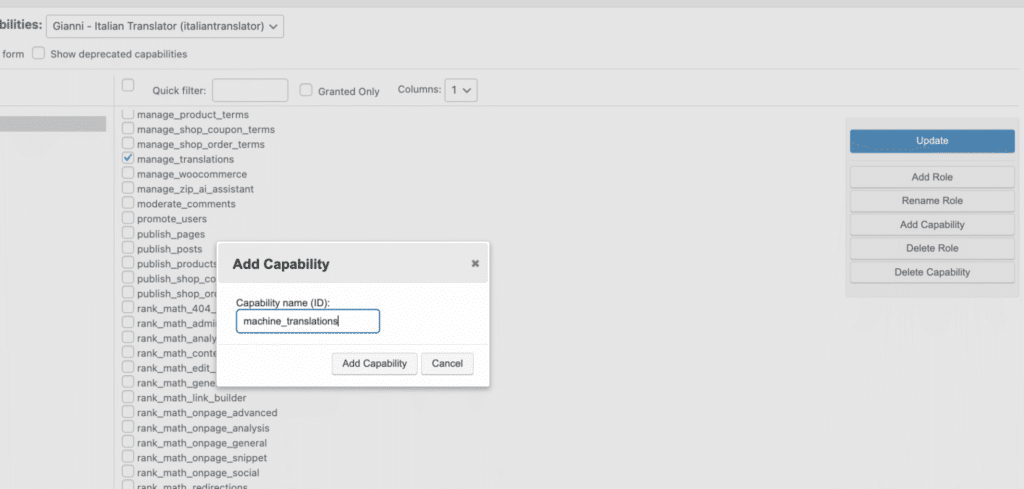
- Go to Users > User Roles Editor > Add capability. Add a new capability named “machine_translations”.
- Check the machine_translations box from the capability lists and click on Update.
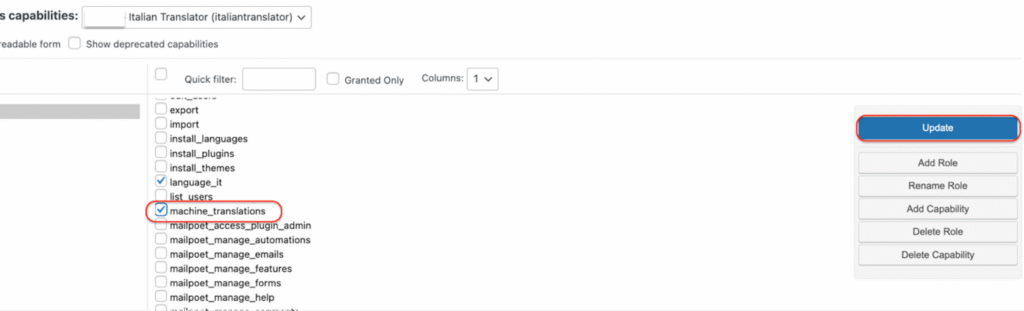
- In our example, Gianni will have access to the DeepL machine translation (for the Italian content only).
Managing Languages access
Capability name: manage_languages
What it does: This capability allows a role to manage site languages (Languages > Languages), but also with the Languages REST API. It provides access to the languages table (add, edit, delete languages) without granting full administrator rights.
- Go to Users > User Roles Editor > Add capability. Add a new capability and name it “manage_languages”.
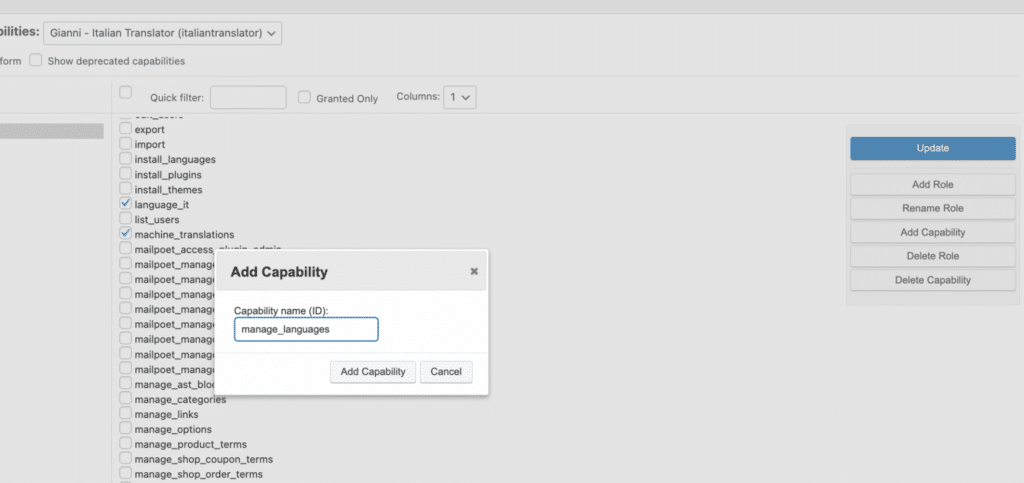
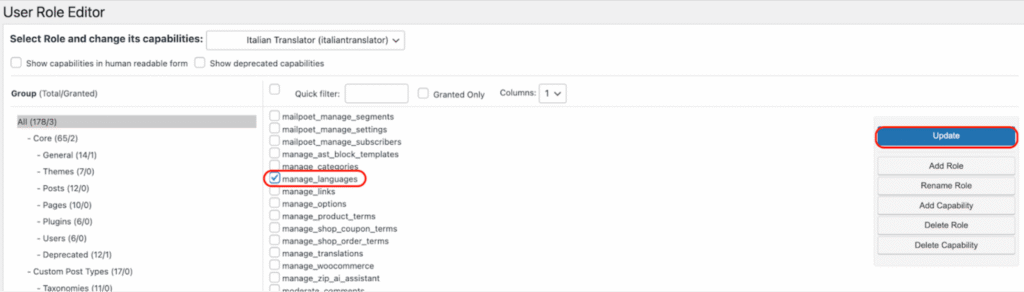
- Check the manage_languages box and click on Update.
How capabilities affect synchronisation and bulk actions
Language capabilities not only restrict editing, but also affect synchronisation and bulk translation actions.
Translation synchronisation
If a user is not authorised for a specific language:
- Synchronisation tools for that language are disabled.
- Translation content is not editable.
- The user cannot modify or update linked translations.
In short: no capability = no editing and no synchronisation.
Bulk translate
Bulk translation follows the same logic. A user can trigger bulk actions only for the languages they are authorized to manage.
For example:
- If a user has the translate_it permission, they can bulk translate into Italian.
- They will not be able to bulk translate into English, Italian, or any other unauthorized language.