


How to configure the languages
Polylang
Polylang Pro
🎯 Objective: Learn how to configure and manage the languages of your WordPress site with Polylang.
Must-read:
- Polylang provides 132 predefined languages.
- You can create a custom language if it’s not available in the predefined list.
- Some features are available only in Polylang Pro, such as language deactivation and locale fallback.
Understanding the language structure in Polylang
- Polylang Pro manages languages from a central language table accessible from Languages > Languages in your WordPress dashboard.
- Each language is defined by a name, locale, language code, text direction, and display options.
- These settings control URLs, translations, and language switching.
Adding a language
Polylang includes 132 predefined languages, and you can add a language using the Languages panel.
Good to know: Our policy for including a language in the predefined list is not related to the number of speakers. We add a new language only when WordPress provides an official language pack for it (which means that WordPress is almost 100% translated into that language). Currently, 132 language packs are available on WordPress, and this is why you see 132 predefined languages in Polylang.
| ⚠️ If you don’t see your language in the list, you can always add it yourself. Please refer to the section below: Adding your own language. |
1. Go to Languages > Languages and select the language of your choice in the dropdown menu under the Add new language section.
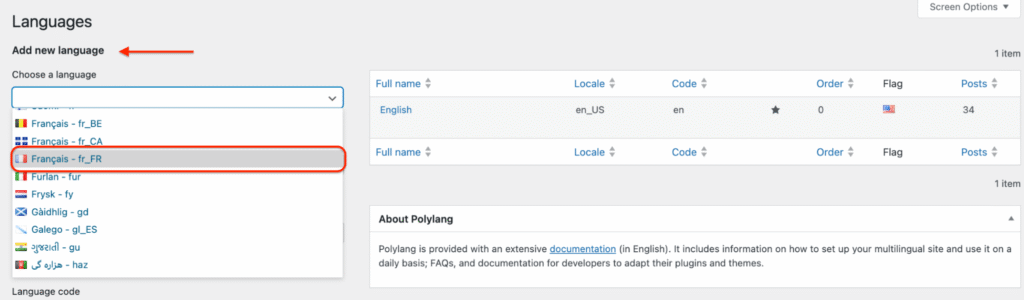
2. Click on the Add new language button.
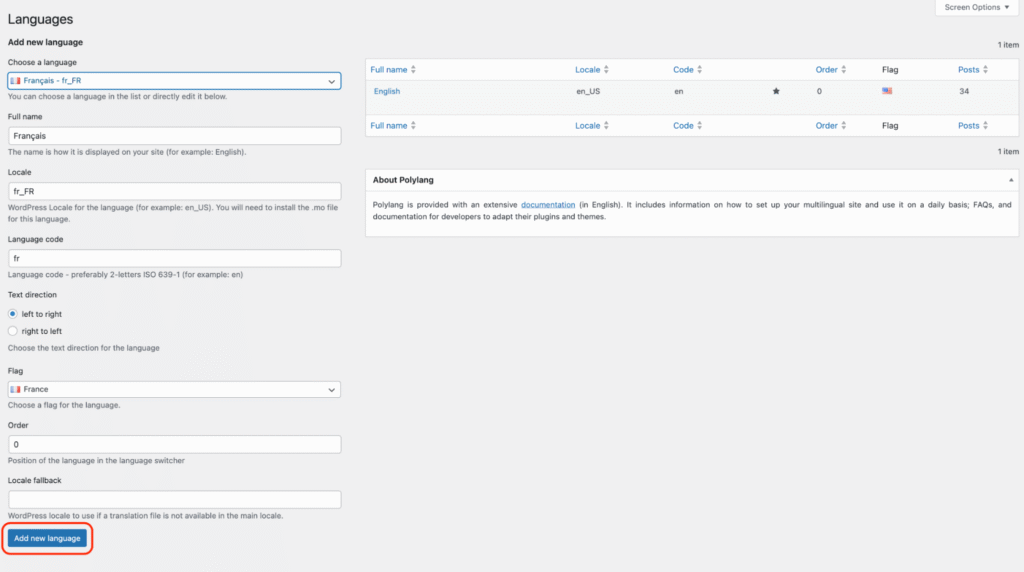
3. Each language is automatically defined by a name, locale, language code, text direction, and display options.
Example (French):
| Setting | Example (French) | Definition |
| Name | French | How the language appears in the admin and language switcher |
| Locale | fr_FR | Determines which WordPress translation files are loaded (core, themes, plugins) |
| Language code | fr | Used in the URL structure when the language is set from the directory name in pretty permalinks (e.g., example.com/fr/) |
| Text direction | LTR | Defines how text flows on the page (left-to-right or right-to-left) |
| Display options | Default French flag | Defines several options, such as which flag to display in the admin area (or in the language switcher, if enabled), and the order in which languages should appear. |
Adding your own language
If the language you need is not listed, you can create a custom language by manually defining its parameters (name, locale, code, etc.).
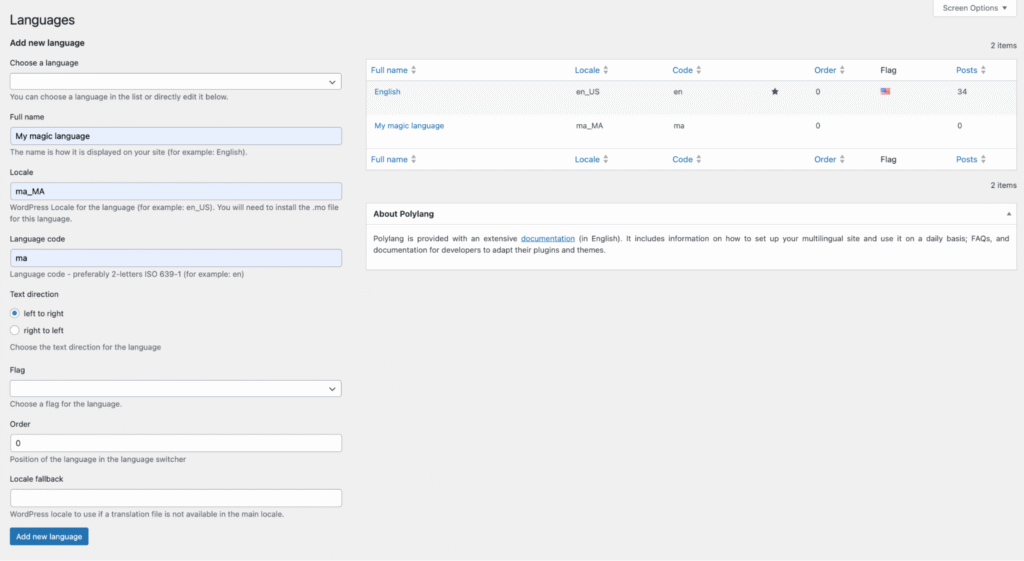
Configuring language settings
All language settings are available from Languages > Languages. When a language is added, Polylang automatically creates the associated setting, which can be easily edited if needed.
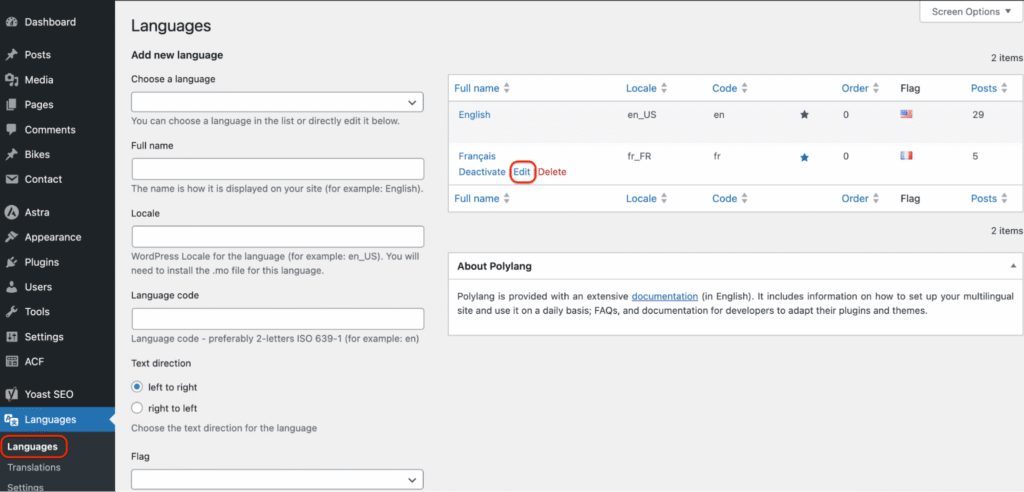
Changing the language name
Changing the language name affects how it is displayed in the admin and in the language switcher. However, it does not affect URLs or translations.
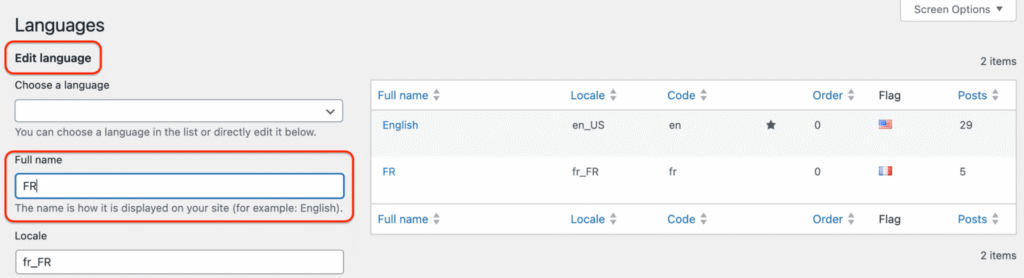
Example: Change “French” to “FR”.
1. In the Full name field, you can edit the language and call it FR, for example.
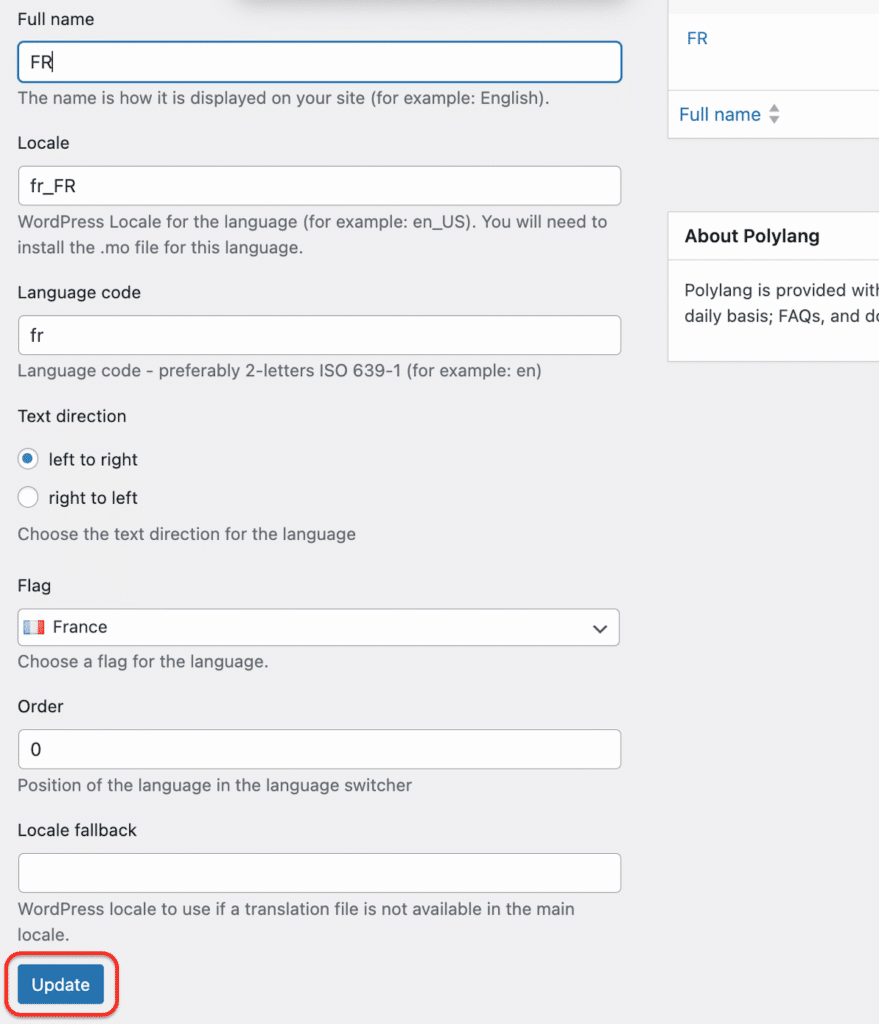
2. Click the Update button.
Configuring the locale
The locale is the code WordPress uses for each language, and you can define or modify it when creating a language. You must use a valid WordPress locale because it tells WordPress which translation files to load.
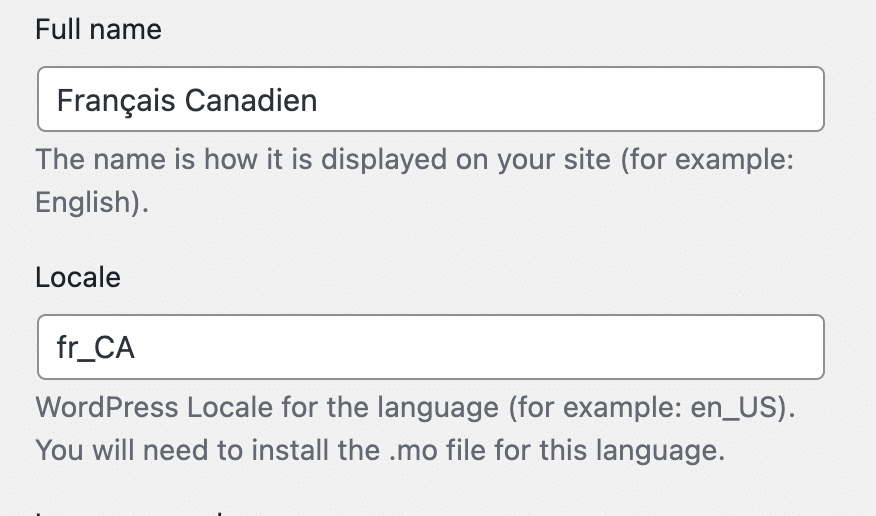
Example:
For French, both fr_CA and fr_FR are valid choices.
It affects:
- WordPress core translations
- Theme translations
- Plugin translations
Editing a locale
If you change the locale after creating a language, WordPress will look for translation files that match the new locale.
For languages without an official WordPress language pack, you must add the corresponding .mo and .po files for WordPress, your theme, and plugins.
| ⚠️ Important Although it is possible to edit the locale after the language has been created, this is not recommended. |
Resource: How to find a WordPress locale
To find the correct WordPress locale, visit the Translating WordPress resource.
There, you can:
- Search for available WordPress locales.
- Verify the correct locale code (e.g., fr_CA, es_AR, etc.).
- Download WordPress translation files manually. If you create a custom language, it will not have an official WordPress language pack. You may need to manually download and install any available translation files, and in some cases, no translations may be available.
Example:
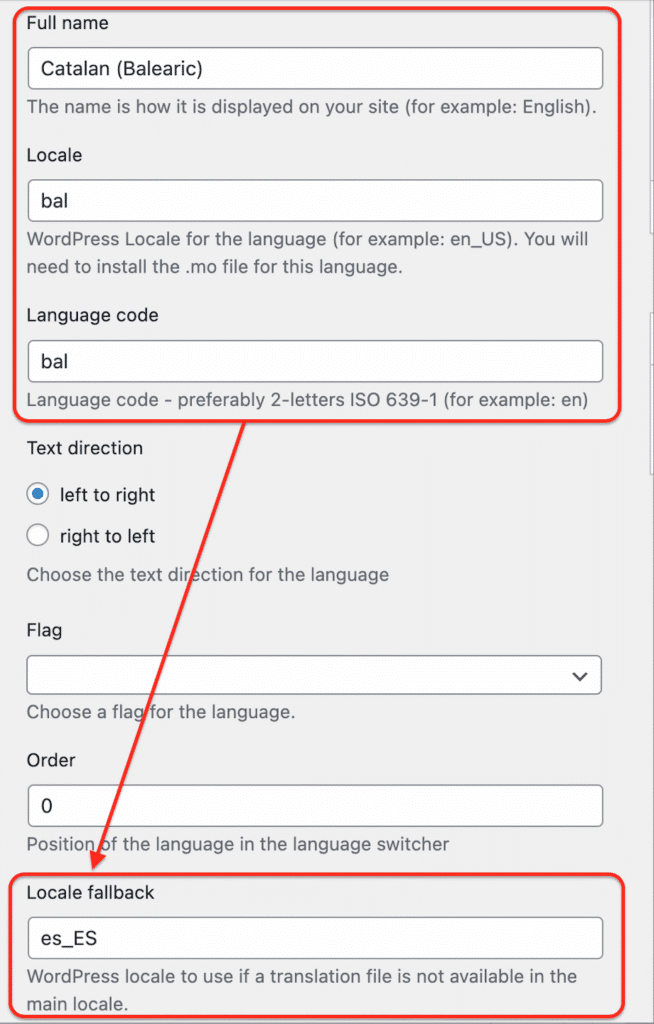
Catalan (Balearic), with the locale “bal”, does not have an official WordPress language pack. Any available translations must be installed manually.
Defining the language code
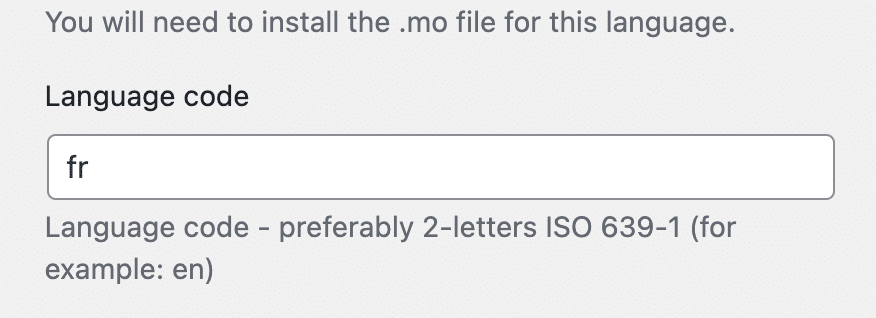
Language codes are used to define languages, generate URLs, enable correct browser language detection, and structure multilingual content. Each language must have a unique code.
Polylang uses the ISO 639-1 two-letter language codes to define languages, such as:
- fr for French
- en for English
- es for Spanish
Special case: Example of the Chinese language codes
Chinese language is a special case because it requires both a language code and a regional or script distinction.
Example:
If you want to add Chinese for Mainland China, Hong Kong, and Taiwan, they all share the same ISO 639-1 base language code: zh.
Since Polylang requires a unique language code for each language, you can create a new code as follows:
- zh-cn for Mainland China (zh_CN)
- zh-hk for Hong Kong (zh_HK)
- zh-tw for Taiwan (zh_TW)
| ⚠️ Changing the code of an existing language will modify the URLs of all associated pages and posts. This can result in 404 errors on the previous URLs if proper redirects are not implemented. |
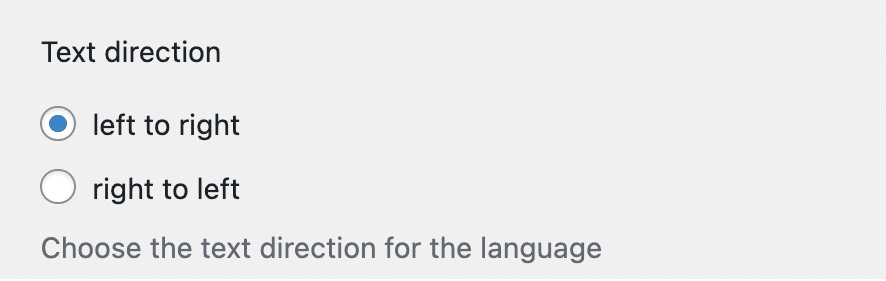
Setting the text direction (LTR / RTL)
The text direction defines how text flows on the page. It allows the theme to load the correct stylesheet.
Example: French uses LTR (left-to-right), but Hebrew uses RTL (right-to-left).
How to know if a theme is RTL-ready?
All the default WordPress themes are RTL-ready.
To properly support RTL languages, a theme must include an rtl.css file. If this file is missing, you can either:
- Contact the theme author and request RTL support
- Implement RTL support yourself
For guidance on adding RTL support, refer to the RTL WordPress documentation.
Choosing a language flag
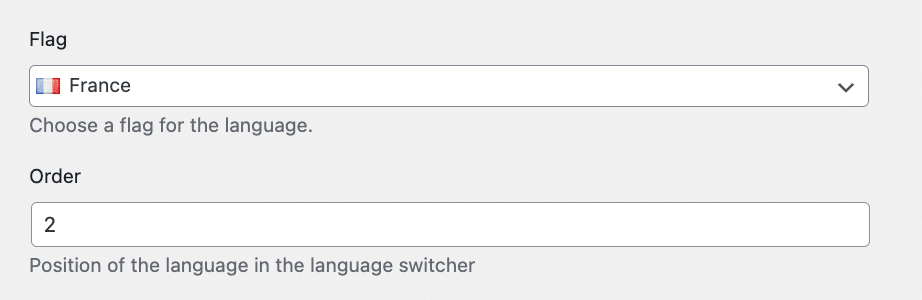
You can assign a flag to each language. Flags are mainly used in the language switcher as visual indicators (if you choose so).
Example: Assign the French flag to the French language.

| 💡Hint: You can also upload your own custom flags. |
Changing the language order in the language switcher
You can control the order in which languages appear in the language switcher and from the admin using the same Order option.
Example: Display English first, then French.
Using locale fallback (Polylang Pro)
Polylang Pro
If a language’s translations are missing, locale fallback tells WordPress which alternative language to use.
Example:
For Catalan (Balearic), with the locale bal, there is no official WordPress language pack. You can use es_ES as a fallback so that WordPress loads Spanish translations automatically when no “bal” translations are available.
This applies to:
- WordPress core translations (since there are no ready-made bal language pack files, es_ES translations will be loaded)
- Theme translations (if no bal files exist, es_ES translations of the theme will be loaded, if available)
- Plugin translations (if no bal files exist, es_ES translations of plugins will be loaded, if available)
| 💡Hint: You can enter multiple locales separated by commas to define alternative translations if the primary locale is not available. |
Setting the default language
The default language is the main language of your site. It is used as the base language for all translations. The first language you create automatically becomes the default language.
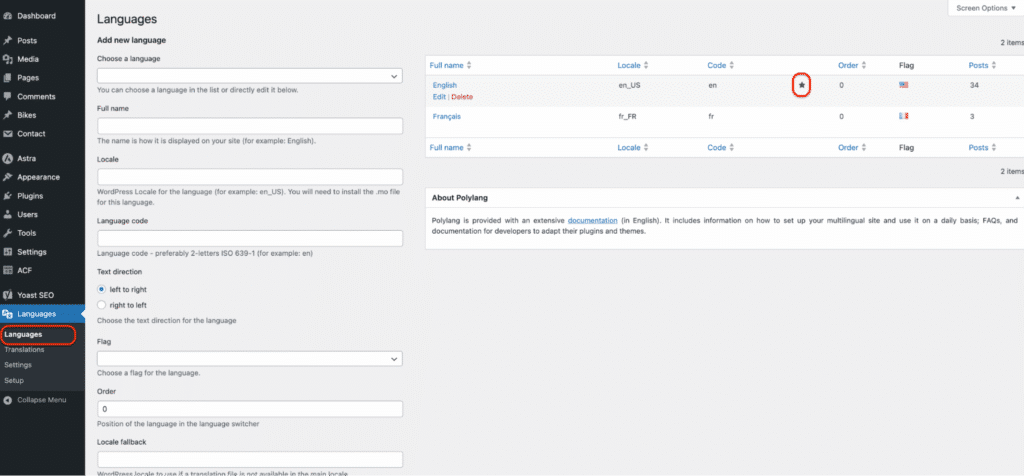
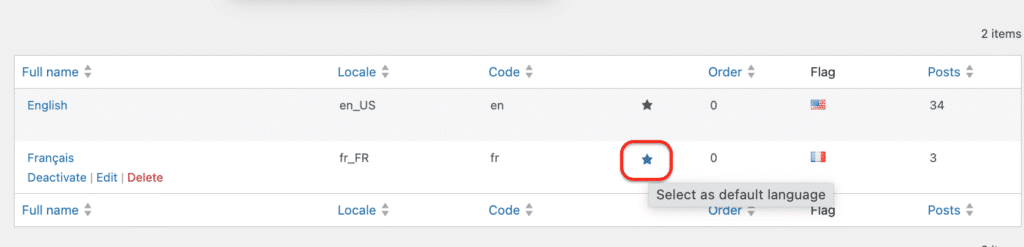
Go to Languages > Languages and check which language has a start activated next to it. In the language list, the star icon indicates the default language and lets you easily change it without affecting already created content.
Changing the default language
Changing the default language after the initial assignment does not change the language of existing content.
Go to Languages > Languages and change the default language at any time by clicking on the star next to the language of your choice. The star appears when hovering over a language row.
Good to know:
- Changing the default language does not affect existing content.
- It is possible to assign the default language to existing content.
- If you delete the default language, Polylang will automatically assign another language as the new default.
Deleting the default language
If you delete the default language, Polylang will automatically assign another language as the new default.
Assigning a language to existing content
You can assign the default language to existing content. For more information, check our dedicated guide.
Deactivating a language (Polylang Pro)
Polylang Pro
Polylang Pro allows a language to be deactivated.
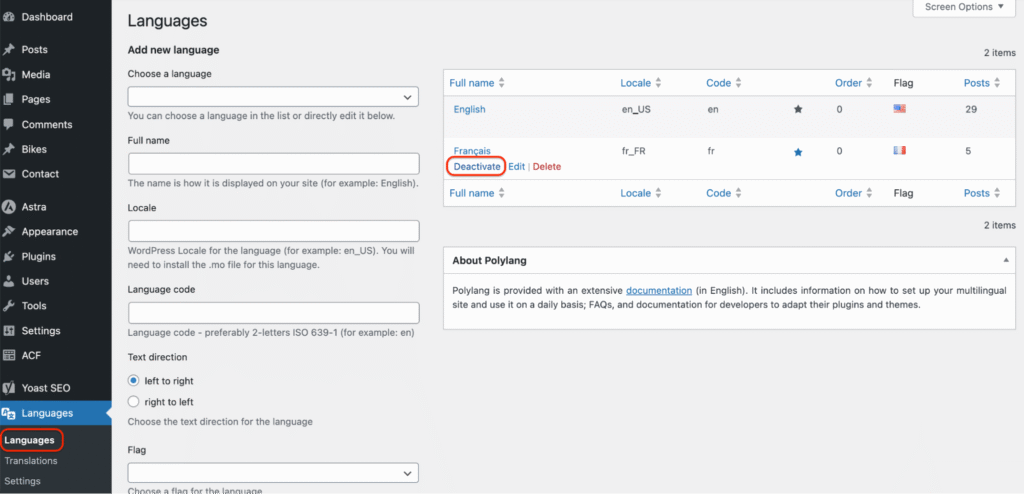
1. Go to Languages > Languages.
2. Click on the Deactivate button under the language of your choice.
When a language is deactivated:
- It is hidden from visitors and subscribers on the frontend.
- It remains visible in the WordPress admin to logged-in users who have the edit_posts capability, such as administrators, editors, authors, and contributors. This means that translators and editors can continue working on the content, while the language remains hidden from the public.
- It remains visible in Polylang CLI (Polylang Pro).
Example: You can deactivate your second language, French, while translations are still in progress.
| 💡Hint: You cannot deactivate the default language. To deactivate it, you must first assign another language as the default. |
Deleting a language
| ⚠️ Deleting a language has important consequences. Before proceeding, please read the full explanation in the dedicated documentation. |
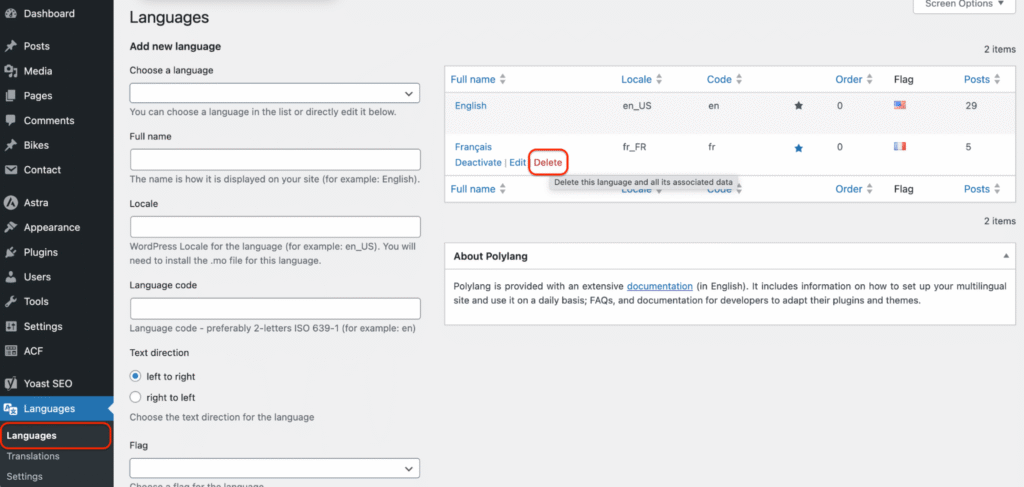
1. Go to Languages > Languages.
2. Click on Delete under the language of your choice.
Managing language editing permissions (Polylang Pro 3.8)
Polylang Pro
With Polylang Pro, you can restrict which languages specific users can edit based on their capabilities.
You can:
- Restrict a translator to one specific language only
- Grant access to string translations without giving full administrator rights
- Control who can trigger DeepL automatic translations
For detailed instructions on configuring and assigning these capabilities, refer to the full documentation.